
Start a new order (stock lookup)
Search by name or SKU, see what’s in stock right now, and add straight to your cart.
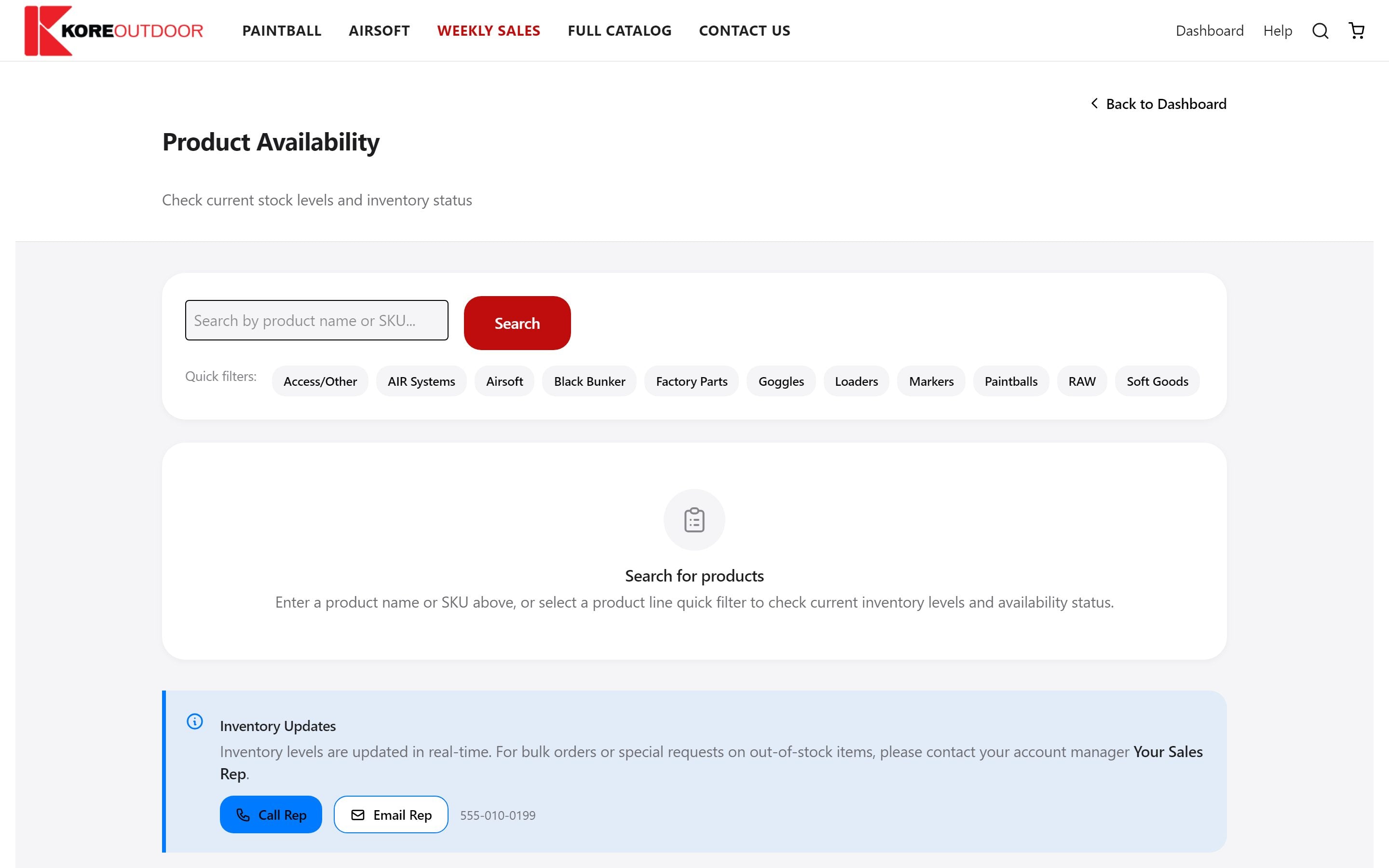
Find what you need
- Step 1: On your dashboard, select Start a New Order.
- Step 2: Type a product name or SKU and select Search, or pick a product line from Quick filters.
- Step 3: Select a column heading (Product, SKU, Price or Status) to sort the list.
Reading the stock status
- In Stock: more than 10 available.
- Low Stock: 10 or fewer left. Order soon.
- Out of Stock: none available right now.
Add to your cart
Set the quantity on a row and select Add; the button briefly shows Added. If you ask for more than is available, only what’s in stock is added and a short note tells you. Select View to open the full product page.
Tip: Need something that’s out of stock? Contact your sales rep from the box at the bottom of this page.
Still stuck? Contact the Kore team.