
Bulk ordering with a CSV
Upload a list of SKUs and quantities, and we hold the stock for 5 minutes while you check out.
Prepare your file
Your file needs two columns: SKU and Quantity. You can download a ready-made template from the Bulk Order page, or save your own spreadsheet as CSV.
- SKU, Quantity
- 12345, 10
- 45678, 25
Upload and check
- Step 1: On the dashboard, select Create Bulk Order from Sales Flyer.
- Step 2: Upload your CSV. Each line is checked against the catalog and current stock.
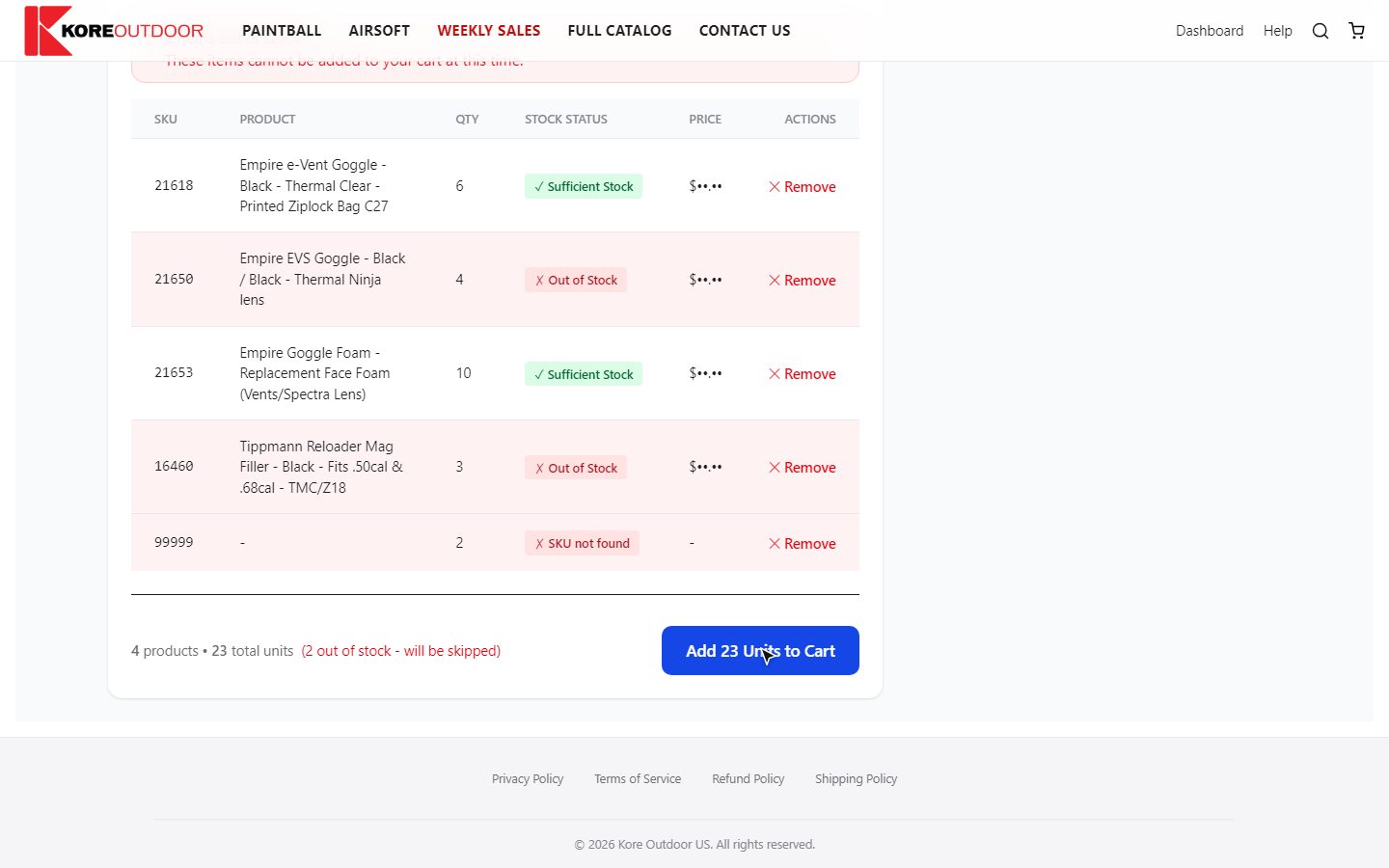
- Step 3: Review the result. Each line shows Sufficient Stock, Partial Fill or Out of Stock, and unknown SKUs are flagged.
- Step 4: Select Add [number] Units to Cart. Out of Stock lines are skipped, and Partial Fill lines are added at the quantity we have.
Check out within 5 minutes
Bulk items are held for you for 5 minutes, so nobody else can buy that stock while you finish.
Tip: Held items work differently from the rest of your cart. They sit at the top of your cart with a countdown and their own Checkout button, separate from Proceed to Checkout. That button opens Kore’s invoice page for the held items, and the invoice is emailed to you too. If you have more than one hold, it checks out the one that ends first; select Checkout again for the next. If the timer runs out, the hold ends and those items drop out of your cart.
Still stuck? Contact the Kore team.