
Special sale events
For big sales like Black Friday, one order form lists every deal with its sale price.
How you’ll know a sale is on
- A sale banner at the top of your dashboard, with the number of deals, the lowest sale price and the last day.
- A red sale button at the top of the matching menu (Paintball or Airsoft).
- On the product page of a sale item, the sale price shows in red with your usual price crossed out.
Select Shop the deals on the banner (or the sale button in the menu) to open the order form.
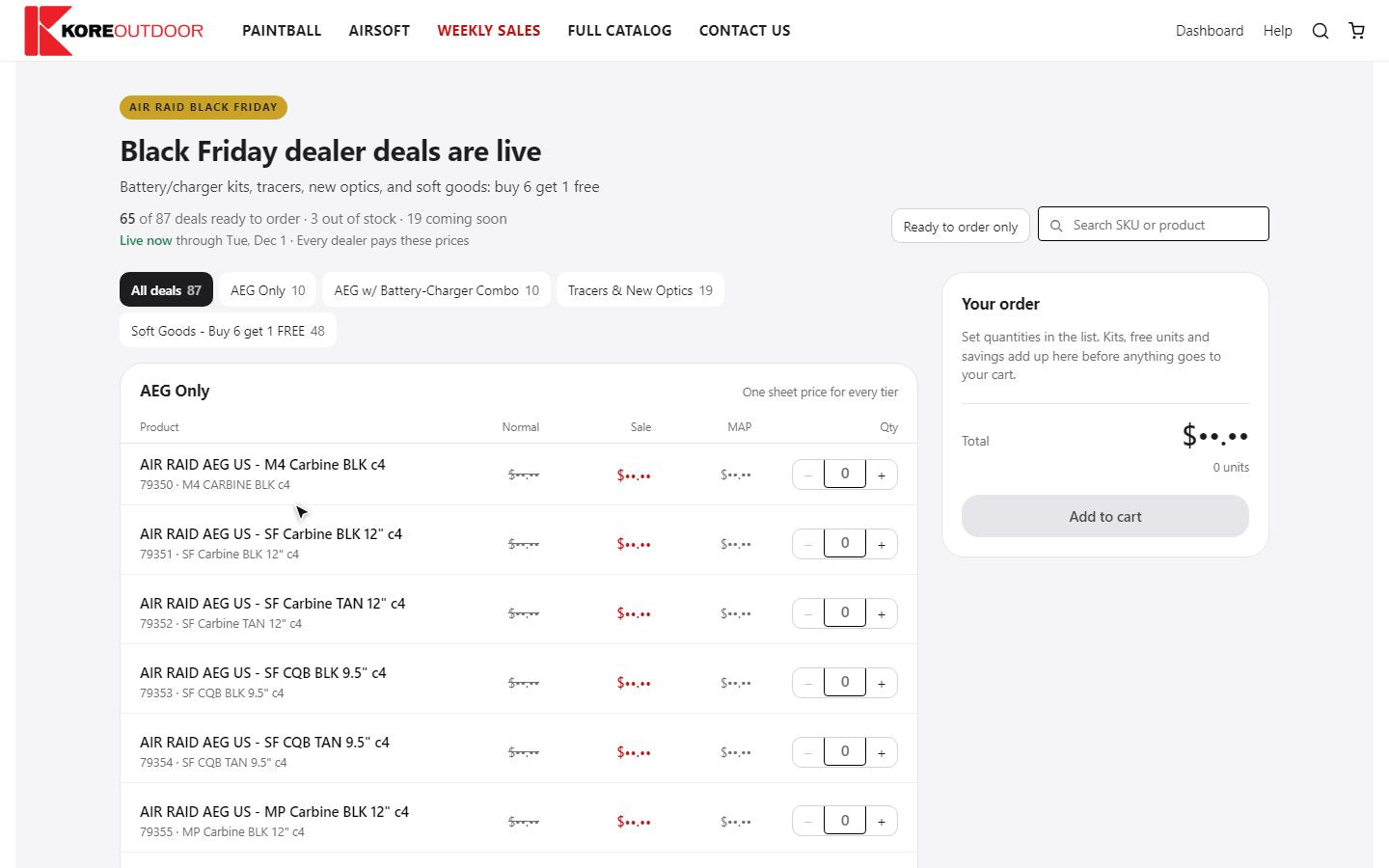
Using the order form
- Step 1: Use the tabs to jump to a section, or search by SKU or product name.
- Step 2: Select Ready to order only to hide items that are out of stock or coming soon.
- Step 3: Type a quantity on each row you want. The Your order panel adds up your total, any free units and how much you save.
- Step 4: Select Add to cart. Everything goes into your cart together, and you check out as usual.
- Kits: the item and its battery or charger kit are added together.
- Buy-and-get-free deals: the free units are worked out for you as you add quantity.
- Sale prices are the same for every dealer. If your usual price is already lower, you pay the lower price.
Good to know
- Discount codes don’t apply to sale items.
- Prices are checked again at checkout. If they’ve changed (for example the sale has ended), your cart is updated to the current prices before anything is sent.
- When no sale is running, the page says so and points you to Weekly Sales.
Still stuck? Contact the Kore team.